Adding Badges
- Badges are visual symbols that convey quick information about your skills, tools, or achievements.
- How to Add Badges
- Find Badges: Use Shields.io to create custom badges.
- Example badge URLs:
Copy code


Add to README
- Copy the badge markdown code and paste it into your README.
- Adding Images and GIFs
- Visuals can make your profile more engaging.
- How to Add Images

- Host your images on platforms like Imgur or GitHub itself.
How to Add GIFs

- Find GIFs on Giphy or create your own.
- Integrating Statistics and Dynamic Content
- Show dynamic stats to provide up-to-date information.
GitHub Readme Stats
- Use GitHub Readme Stats.
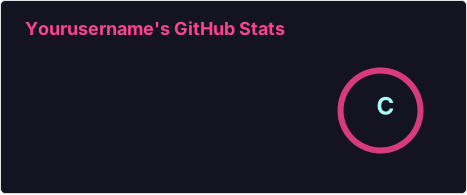
Top Languages Card
[](https://github.com/anuraghazra/github-readme-stats)
Using README Generators
- Simplify the process with generators.
GitHub Profile README Generator
- Visit rahuldkjain.github.io/gh-profile-readme-generator
- Steps:
- Fill in your details.
- Select badges and sections.
- Generate markdown.
- Copy and paste into your README.
Best Practices and Tips
- Keep It Updated: Regularly update your README with new projects and skills.
- Be Authentic: Let your personality shine through.
- Organize Content: Use headings, bullet points, and dividers.
- Mobile-Friendly: Ensure it looks good on all devices.
- Preview Changes: Always preview before committing.
- Inspiration from Creative Examples
- Creative Profile READMEs
- Awesome GitHub Profile README
- Additional Resources
- GitHub Docs: Managing Your Profile README
- Markdown Guide: Basic Syntax
Conclusion
A well-crafted GitHub profile README can make a significant impact. It’s your personal space to showcase your work, skills, and who you are as a developer. Use the tools and tips provided to create a profile that reflects your unique identity in the developer community.
Happy coding! 🚀